Back to blog Andreia Carmen
Customize input type radio button using CSS only
Customize input type radio button using CSS only!
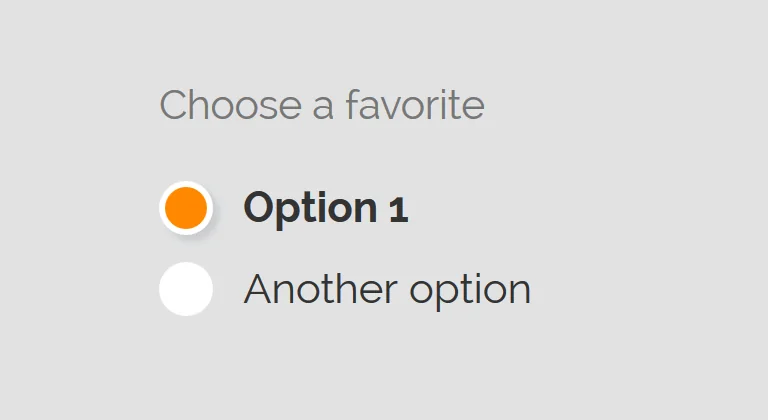
Andreia CarmenRadion buttons design are so boring, right? So, if you want to override browser defaults, with a little extra markup, the form elements can be styled in almost any way - no JavaScript required. To create a custom design for your input type radio buttons, using CSS only, first step is to place the inputs in your HTML file, like this:
<div>
	<input id="option-one" name="radio" value="one" checked="checked" type="radio">
	<label for="option-one">
		<span></span>
		First Option
	</label>
</div>
<div>
	<input id="option-two" name="radio" value="two" type="radio">
	<label for="option-two">
		<span></span>
		Second Option
	</label>
</div>
Then, we are going to do some styling in the CSS file:
input[type="radio"] {
	display: none;
}
input[type="radio"] + label {
	font-weight: 400;
	font-size: 14px;
}
input[type="radio"] + label span {
	display: inline-block;
	width: 18px;
	height: 18px;
	margin: -2px 10px 0 0;
	vertical-align: middle;
	cursor: pointer;
	-moz-border-radius: 50%;
	border-radius: 50%;
	border: 3px solid #ffffff;
}
input[type="radio"] + label span {
	background-color: #fff;
}
input[type="radio"]:checked + label {
	color: #333;
	font-weight: 700;
}
input[type="radio"]:checked + label span {
	background-color: #ff8800;
	border: 2px solid #ffffff;
	box-shadow: 2px 2px 2px rgba(0,0,0,.1);
}
input[type="radio"] + label span, input[type="radio"]:checked + label span {
	-webkit-transition: background-color 0.24s linear;
	-o-transition: background-color 0.24s linear;
	-moz-transition: background-color 0.24s linear;
	transition: background-color 0.24s linear;
}
That’s it! Of course, you can change the colors or find another shape or size for the buttons.
css radio buttoncustom radio buttoncss only radio button
Back to blog